Inspection reports
The Inspection reports menu shows a list of all inspection reports stored in Memida.
View details for an inspection report
Click the date in the left column to view the report details, or click the three dots at the end of the row and select View.
Add an inspection report
To add a report, first select the inspection device in the list and open its detail page. Then click the plus icon next to Inspection report on the right side.
The dialog for adding an inspection report opens.
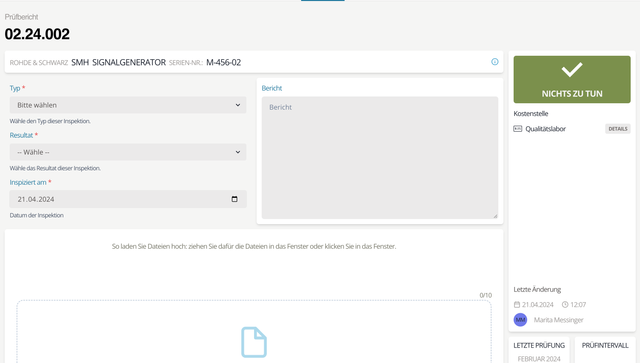
Fig. 1: Add inspection report
Choose the report type
Select the type of report from the dropdown list.
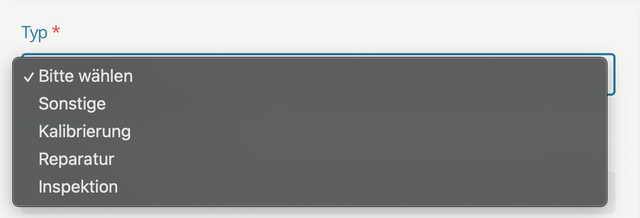
Fig. 2: Choose the report type
Choose the report result
Select the result from the list.
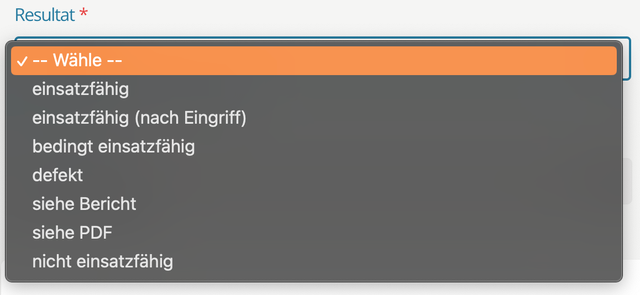
Fig. 3: Choose the report result
Report date
Enter the date on which the report was created.
Report
Use the Report field to record additional information.
Add files to the report
You can upload supporting files at the bottom of the dialog. The following file types are supported:
Upload multiple files at once either by dragging them onto the upload field or by clicking the field to open the operating system’s file dialog.
The maximum file size is 32 MB per file.

Fig. 4: Add file(s) to the inspection report