Inspection report types and equipment history
· 2 min read

This update makes inspection documentation more precise, the global search faster to use, and the change history for inspection equipment easier to follow. In addition to new functionality we addressed targeted fixes to stabilize the location view and improve error messages.
New features at a glance
Inspection report types (master data)
- New inspection report types enable domain-specific classification, e.g., “DGUV inspection”.
- Manage types directly in the master data view: add, edit, delete.
- Data consistency: if you delete a type from the master data, it remains on existing inspection reports for historical accuracy.
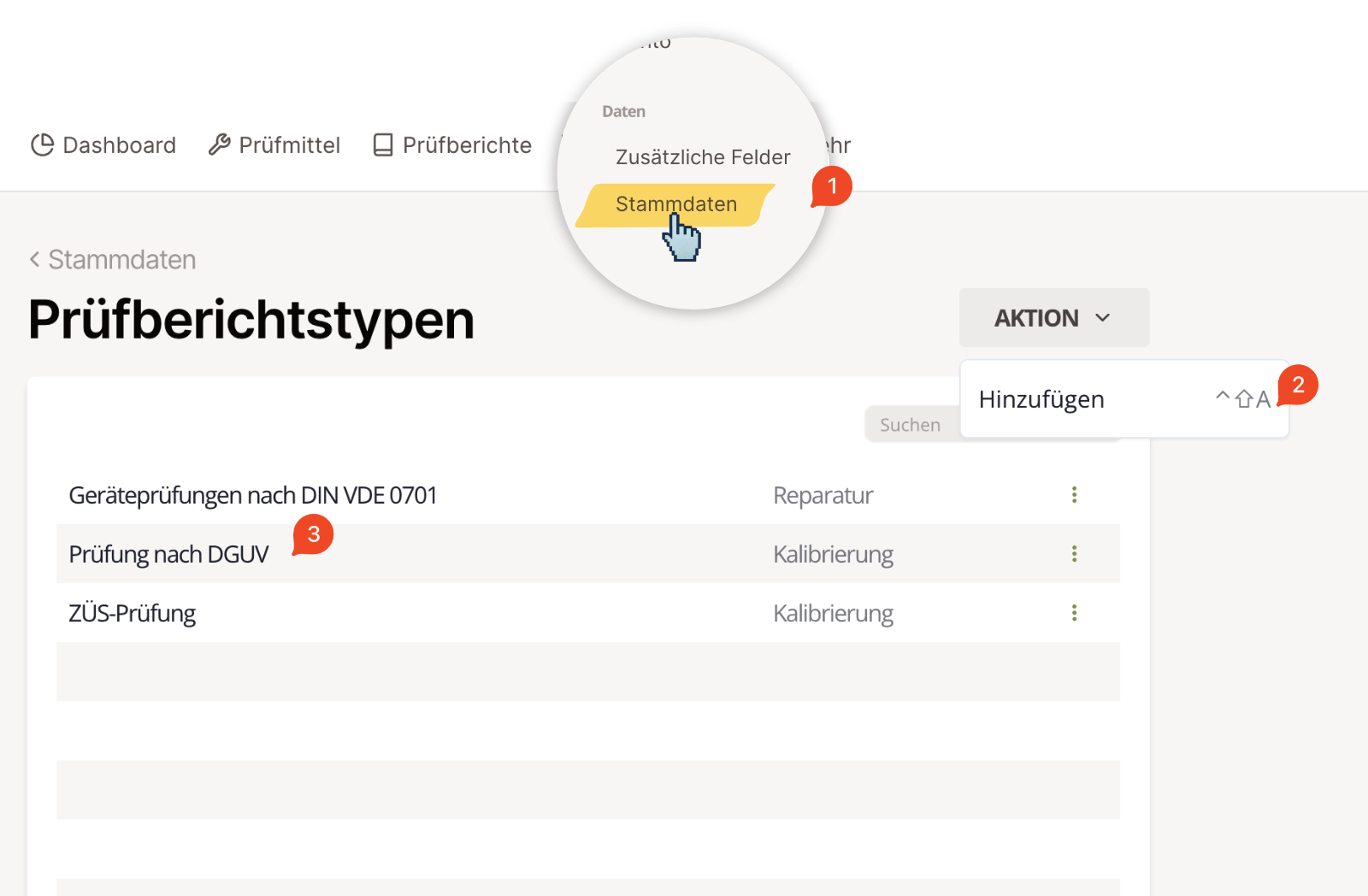
Fig. 1: Inspection report types in the master data view
You can find the new view under Settings → Master data (1). Click Action → Add (2) to create inspection report types tailored to your organization (3).
Global search: keyboard navigation
- Navigate the result list with the arrow keys (↑/↓); press Enter to open a result.
- Goal: faster work without switching to the mouse.
Search in yes/no custom fields
- Revised search logic for binary custom fields (yes/no).
- Result: more precise and predictable matches, especially when combined with other filters.
Tip: Open the search from the icon in the top navigation or with the shortcut Ctrl/Cmd + K.
Revised inspection equipment history
- More detail in the logs for create, edit, and delete actions.
- Improved overview: clearer event structure for faster orientation across the equipment lifecycle.
General improvements
- Locations – mini map: fixed an occasional loading issue in the small map view to keep the display stable.
- Inspection equipment – error messages: refined texts and triggers for clearer guidance and consistent reactions to input errors.
Read more in our handbook: Handbook.